
1
Open an image
Choose a supported image and let the browser read its current width and height locally.
Resize Image
Resize JPEG, JFIF, PNG, WebP, HEIC, HEIF, AVIF, SVG, BMP and TIFF images by width, height, percentage or exact dimensions while keeping processing on your device.
JPEG, JFIF, PNG, WebP, HEIC, HEIF, AVIF, SVG, BMP or TIFF
Your image never leaves your device
Resize method
Height is calculated automatically to preserve the aspect ratio.
Output format
REAL TEST RESULTS · EXAMPLE
These three PNG files show the same workspace photo at its original resolution, at 50% width and height, and at 25% width and height. Compare the real results and inspect fine details in the keyboard or headphones. The photo was resized without cropping.

The same scene area is enlarged for each version, so you can see how fewer pixels affect detail.
Original PNG
100% source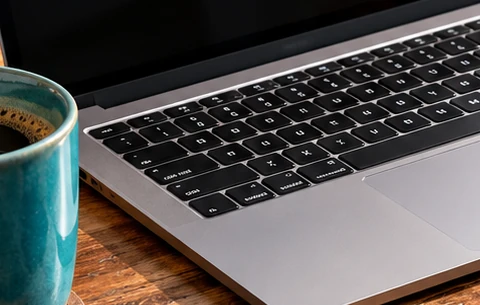
Resized 50% PNG
50% per dimension
Original PNG
3.14 MiB
1448 × 1086 px
Resized PNG · 50%
874.6 KiB
724 × 543 px
File size reduction
72.8% smaller
Compared with original PNG
| Version | Dimensions | File size | Reduction |
|---|---|---|---|
| Original PNG | 1448 × 1086 px | 3.14 MiB | — |
| 50% resize (selected) | 724 × 543 px | 874.6 KiB | 72.8% smaller |
| 25% resize | 362 × 272 px | 239.9 KiB | 92.5% smaller |
File sizes and dimensions above were measured from the actual PNG test files. To keep this page fast, the interactive comparison uses lightweight WebP previews instead of downloading the multi-megabyte PNG originals. The enlarged crops show the same corresponding image region at each resolution. Resizing does not guarantee the same file size reduction for other photos or output formats; use the tool above to test your own image.
Image resizing changes the pixel dimensions of a file. It is useful when a website, document, marketplace or application expects a specific width and height, or when a large camera image contains far more pixels than you actually need. Reducing dimensions can also make later editing, sharing and compression faster.
Image Toolroom lets you resize by width, height, percentage or exact dimensions directly in your browser. You can keep the proportions when you want to avoid distortion, or enter exact dimensions when a destination has a fixed size requirement. The original file remains unchanged on your device.
Choose a supported image and let the browser read its current width and height locally.
Resize by width, height, percentage or exact dimensions, then select the available output options.
Create the resized image in your browser and download the new file while keeping the original untouched.
Resizing changes the number of pixels in the image. Compression changes how efficiently those pixels are stored. A file can be resized, compressed, or both.
Reducing dimensions normally removes detail because fewer pixels remain. Enlarging an image can make it look softer because the browser has to estimate new pixels.
Use a width, height or percentage mode that preserves the source aspect ratio. Exact width and height should only be used when you intentionally need those dimensions.
No. The tool creates a new resized file for download. The original image on your device is not overwritten.
The normal resize operation is performed in your browser, so the selected image does not need to be uploaded to an Image Toolroom processing server.